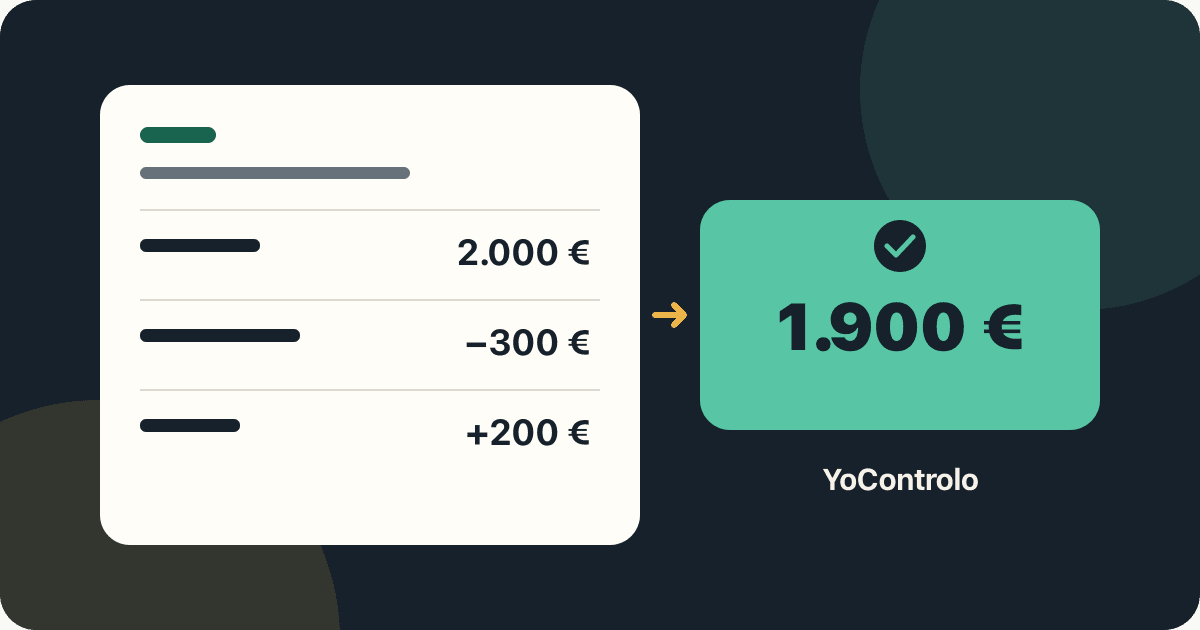
You have imported transactions, but the app still shows a different balance from your bank. Before adding income to “fix” it, check what each number represents. A statement has a period, a transaction order and sometimes a balance after each entry. Understanding these is more useful than forcing two numbers to match.
Balance and transaction amount are different
An amount is money entering or leaving in one transaction. A balance is the money recorded in an account at a point in time. If you already had money when the imported history began, adding its transactions alone will not reconstruct the full balance.
| Date | Description | Amount | Balance |
|---|---|---|---|
| 1 October 2026 | Opening balance | — | €2,000 |
| 2 October 2026 | Purchase | −€300 | €1,700 |
| 3 October 2026 | Income | +€200 | €1,900 |
The transactions total −€100, but the closing balance is 2,000 − 300 + 200 = €1,900. The €2,000 was already there at the start. An opening balance is a reference, not a new purchase or income received that month.
1. Prepare the file and choose the account
Export a statement for one account and check its period and currency. Import your everyday card and savings account separately. A combined overview should not merge their balances: see our guide to keeping accounts and cards in one place.
Do not publish a real statement or paste it into a forum. It can contain names, payment references and personal data. A fictional example preserving the column format is usually enough when asking for help.
2. Review the columns before confirming
Check the mapping of description, date, amount and balance in YoControlo. Automatic detection helps, but still needs review. Some banks separate debits and credits; others use signed amounts. Decimal separators also vary: 1,234.56 and 1.234,56 need different interpretation.
Review an expense, an income entry and the first and last rows. Where balances are supplied, their changes should agree with the amounts in transaction order. Never map the balance column as an amount: that would turn accumulated money into a new transaction.
3. Check dates and statement order
A date such as 17-07-2026 is clear; 07/08/2026 can mean 7 August or July 8 depending on the country. Check the preview before proceeding. If newest entries are first, the final chronological balance may be at the top of the file.
Transactions on the same day may need the bank's original ordering to interpret intermediate balances. The purchase date may also differ from the booking date. Compare matching periods and balance types, not a pending purchase with a closed statement.
4. Decide whether to add or replace a period
Importing expenses already entered manually or through automation can count them twice. In YoControlo, review the option to replace the displayed date interval only for the selected account. Check the earliest and latest dates in the warning before confirming. Entries outside that interval should remain intact.
Do not replace a period automatically. First check for notes or manual entries you want to keep, retain the original file and review the preview. Transactions in another account must not be deleted to reconcile this one.
5. Compare balances on the same reference date
The final CSV balance describes the end of its period, not necessarily your available money today. A purchase on Saturday can legitimately change the balance of a statement ending on Friday. Later transactions still belong in the record.
- Compare the same account, currency and reference date.
- Look for duplicate or missing entries, including transfers.
- Check whether the bank shows booked or available balance.
- Check the opening balance and activity before the file begins.
A transfer between your own accounts is an outflow in one and an inflow in the other. It does not, on its own, mean your total money increased or was spent. Reviewing each account separately helps distinguish transfers from consumption.
Less manual entry, with a short review
Statements help review history. For eligible daily Apple Wallet payments, configure YoControlo's Shortcuts integration to record expenses automatically. Associate each automation with its account and test the result before everyday use.
This is not a bank connection or a replacement for statements. Review overlaps if you later import the same period. Complete your monthly review with our subscription guide and practical saving goals.
The key: give every transaction an account, a date and a meaning instead of forcing two figures to match. Open YoControlo and review your next import with that in mind.